



Summary
We’ve separated administrative monitor setup from active alert response to give on-call teams a focused incident response starting point. By providing dedicated, scoped alert pages and a tenant-wide alert list, responders can quickly isolate failing instances without noise. These updates, including persistent Resolution Notes and out-of-the-box read-only event visibility, reduce manual troubleshooting and accelerate incident remediation.
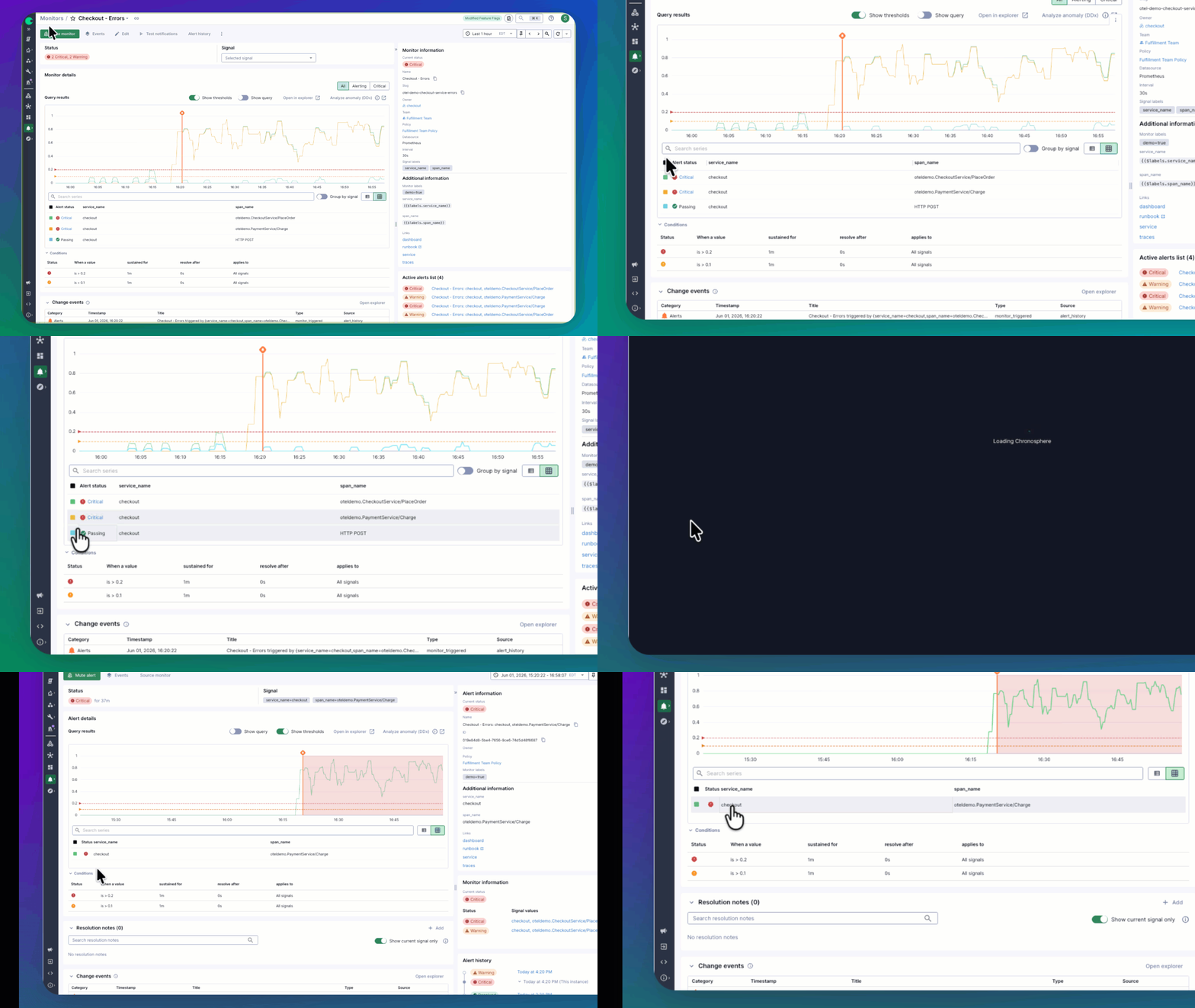
Isolate the signal and reduce noise with dedicated Alert Pages
Previously, individual alerts lived inside the Monitor page. This required responders to parse through administrative configuration data to find the specific failing instance they cared about.
To reduce clutter during active incidents, Chronosphere has separated the reactive workflow of alert response from the setup workflow of defining rules and thresholds. The new dedicated Alert Page provides a clear view scoped to a specific alert occurrence. Each instance generates a unique, shareable URL to support rapid collaboration among team members.
Mobile-responsive layouts also allow engineers to view details, examine related data, and mute alerts directly from a phone. Event overlay features on these pages visually mark charts so responders can easily spot correlations between system events and triggered alerts.
Analyze service and system health using the tenant-wide Alert List
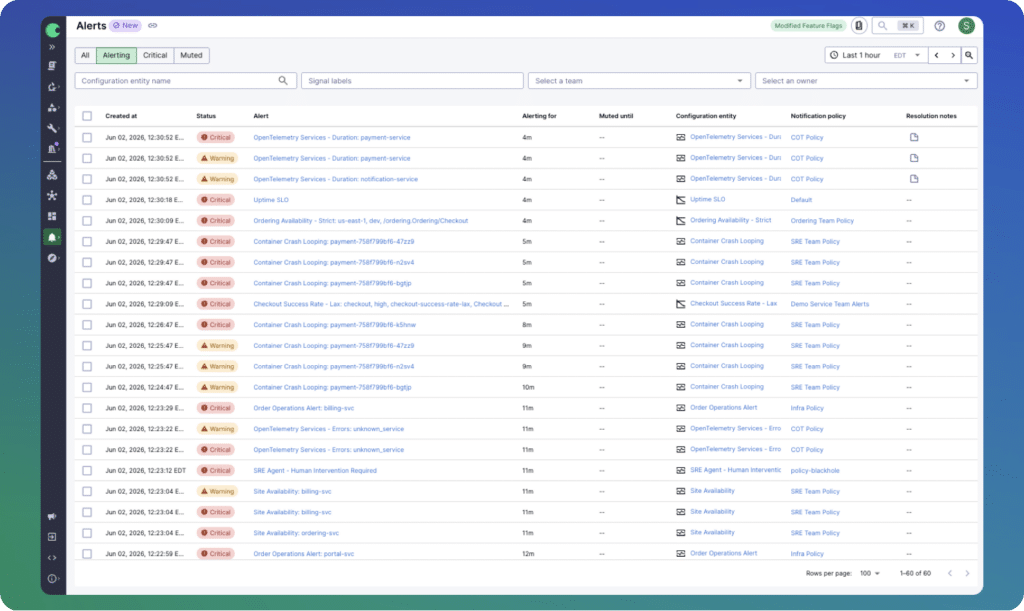
Understanding the broader impact of an incident is critical for service reliability. The new Alert List provides a dedicated, tenant-wide view of all active and past alerts.
With enhanced filters, users can break down alerts by monitor, SLO, state, and status. This global list helps on-call engineers quickly answer questions about what else fired at the same time and whether the overall service remains healthy. It serves as a vital tool during on-call transitions, allowing incoming responders to accurately gauge system performance and anticipate workload.
Prevent repeat troubleshooting with Resolution Notes
A common challenge in incident response is losing hard-won context between outages. Resolution Notes offer a quick way for responders to add specific remediation steps directly to an alert.
These notes persist intelligently and will automatically show up across future instances of the same monitor and signal. By capturing this institutional knowledge, teams help future responders resolve recurring issues much faster. For widespread incidents, engineers can also apply Resolution Notes in bulk directly through the Alert List view.
Correlate system changes with read-only Events
Every customer now receives Chronosphere change events as part of their out-of-the-box platform experience. This read-only visibility includes system-generated events such as fired alerts, resolved alerts, and configuration changes.
Responders can view this data through the Changes Explorer or via event markers directly on Alert, Monitor, and SLO pages. While tracking external events like feature flag updates or deployments still requires a full Events license, this update ensures all users have immediate visibility into internal system changes.
Get started today
All these features are generally available for all customers. Log into Chronosphere to get started.
Not a Chronosphere customer? Schedule a demo to see how Chronosphere can help improve your incident response.

 Blog
Blog